Skip to content
NextLytics
Megamenü_2023_Über-uns

Shaping Business Intelligence

Whether clever add-on products for SAP BI, development of meaningful dashboards or implementation of AI-based applications - we shape the future of Business Intelligence together with you. 

Megamenü_2023_Über-uns_1

About us

As a partner with deep process know-how, knowledge of the latest SAP technologies as well as high social competence and many years of project experience, we shape the future of Business Intelligence in your company too.

Megamenü_2023_Methodik

Our Methodology

The mixture of classic waterfall model and agile methodology guarantees our projects a high level of efficiency and satisfaction on both sides. Learn more about our project approach.

Products
Megamenü_2023_NextTables

NextTables

Edit data in SAP BW out of the box: NextTables makes editing tables easier, faster and more intuitive, whether you use SAP BW on HANA, SAP S/4HANA or SAP BW 4/HANA.

Megamenü_2023_Connector

NextLytics Connectors

The increasing automation of processes requires the connectivity of IT systems. NextLytics Connectors allow you to connect your SAP ecosystem with various open-source technologies.

IT-Services
Megamenü_2023_Data-Science

Data Science & Engineering

Ready for the future? As a strong partner, we will support you in the design, implementation and optimization of your AI application.

Megamenü_2023_Planning

SAP Planning

We design new planning applications using SAP BPC Embedded, IP or SAC Planning which create added value for your company.

Megamenü_2023_Dashboarding

Business Intelligence

We help you with our expertise to create meaningful dashboards based on Tableau, Power BI, SAP Analytics Cloud or SAP Lumira. 

Megamenü_2023_Data-Warehouse-1

SAP Data Warehouse

Are you planning a migration to SAP HANA? We show you the challenges and which advantages a migration provides.

Business Analytics
Megamenü_2023_Procurement

Procurement Analytics

Transparent and valid figures are important, especially in companies with a decentralized structure. SAP Procurement Analytics allows you to evaluate SAP ERP data in SAP BI.

Megamenü_2023_Reporting

SAP HR Reporting & Analytics

With our standard model for reporting from SAP HCM with SAP BW, you accelerate business activities and make data from various systems available centrally and validly.

Megamenü_2023_Dataquality

Data Quality Management

In times of Big Data and IoT, maintaining high data quality is of the utmost importance. With our Data Quality Management (DQM) solution, you always keep the overview.

Career
Megamenü_2023_Karriere-2b

Working at NextLytics

If you would like to work with pleasure and don't want to miss out on your professional and personal development, we are the right choice for you!

Megamenü_2023_Karriere-1

Senior

Time for a change? Take your next professional step and work with us to shape innovation and growth in an exciting business environment!

Megamenü_2023_Karriere-5

Junior

Enough of grey theory - time to get to know the colourful reality! Start your working life with us and enjoy your work with interesting projects.

Megamenü_2023_Karriere-4-1

Students

You don't just want to study theory, but also want to experience it in practice? Check out theory and practice with us and experience where the differences are made.

Megamenü_2023_Karriere-3

Jobs

You can find all open vacancies here. Look around and submit your application - we look forward to it! If there is no matching position, please send us your unsolicited application.

Blog
NextLytics Newsletter
Subscribe for our monthly newsletter:
Sign up for newsletter
 

My Metrics in SAP Analytics Cloud: Personalized KPI Monitoring Made Easy

The “My Metrics” functionality is one of the new features in the latest release of SAP Analytics Cloud, as we have introduced in one of our previous blogposts. “My Metrics” allows users to create lists of KPIs in order to keep track of them. You can think of it as a personalized cockpit where you can individually add and analyze the key figures that are important to you. Instead of searching for the necessary information across multiple dashboards, you compile the data you need for your daily tasks.

With this functionality, SAP addresses typical requirements that involve a high level of manual effort in everyday work. For instance, controllers need to monitor key figures originating from different business areas (e.g. Finance and HR) located in completely different stories. With “My Metrics,” they can see the essential KPIs side-by-side in a single list without having to switch between different reports. The metrics always show the current status. Thus, the controller can automatically see in the morning if revenue or contribution margin has fallen below a critical value and jump directly into the corresponding report for deeper analysis. In this article, I will examine this new functionality in detail. I will show you how you can define, customise and share metrics.
my_metrics_into

How to Create and Customize Metrics in SAP Analytics Cloud

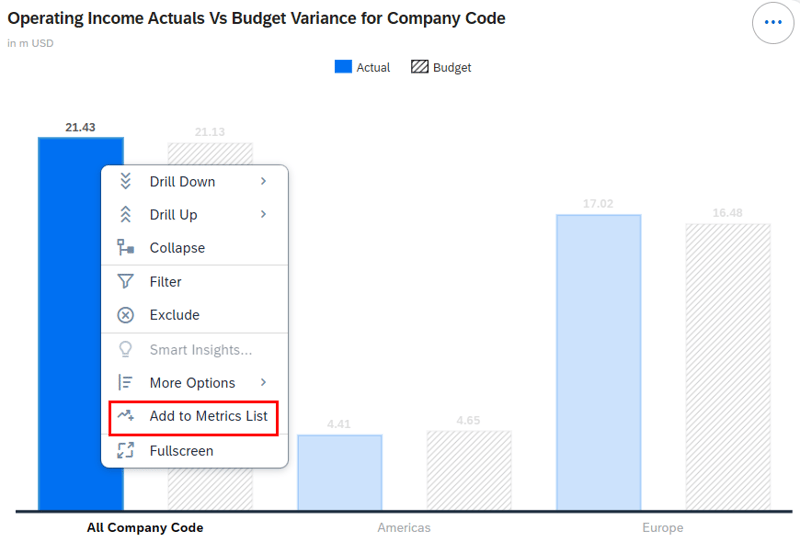
The function is tailored to end users and does not require any technical modelling knowledge. You can easily create a metric by selecting Add to Metrics List from the context menu of the chart.
add-to-metrics-list

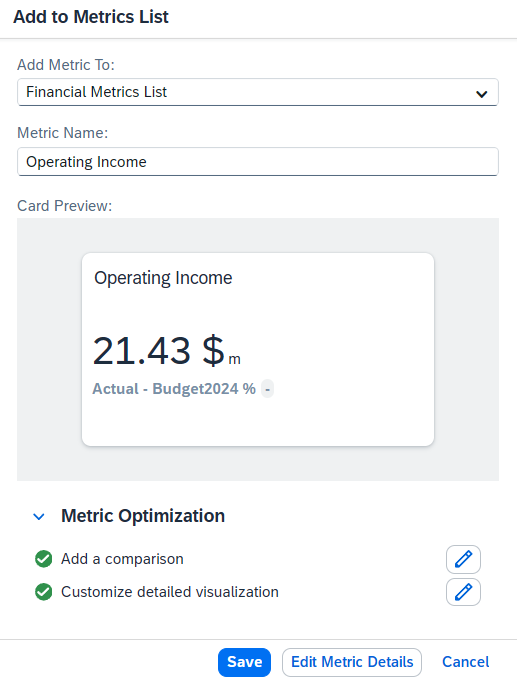
You can then choose whether you want to add the metric to an existing list or create a new metrics list. You can also define the description of the metric and adjust the filters applied. If necessary, you can add a comparison, such as a different version or period, and adjust the visualisation of the detailed chart.
002-metric-options


Dashboarding with SAP Analytics Cloud -
Download the Whitepaper here!
SAP Analytics Cloud Whitepaper


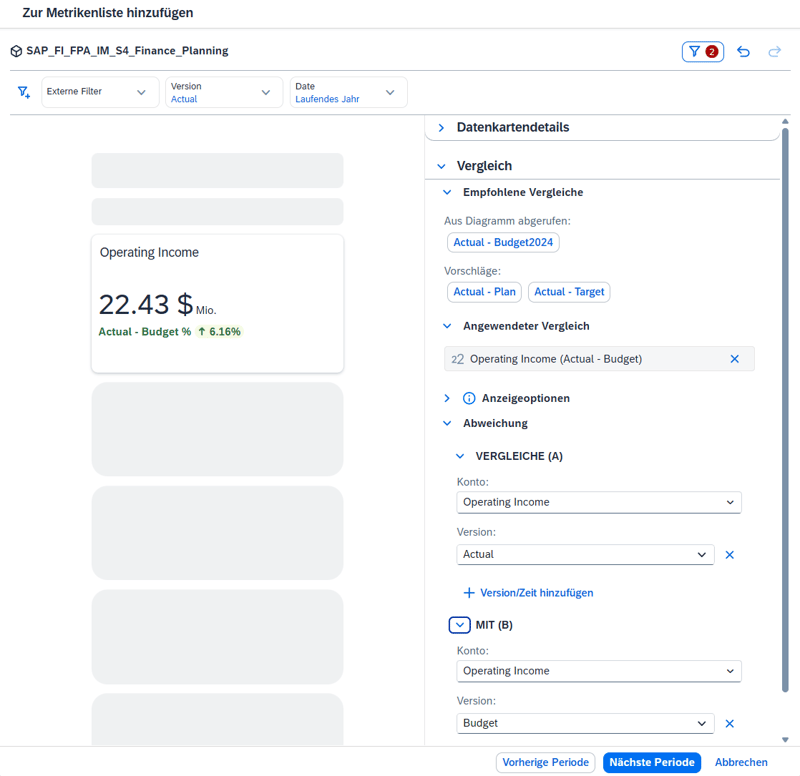
The system automatically suggests comparison parameters. These are usually time or version comparisons based on the underlying diagram. However, you also have the option to define individual comparisons in the Variance section.
my_metrics_define_comparisson

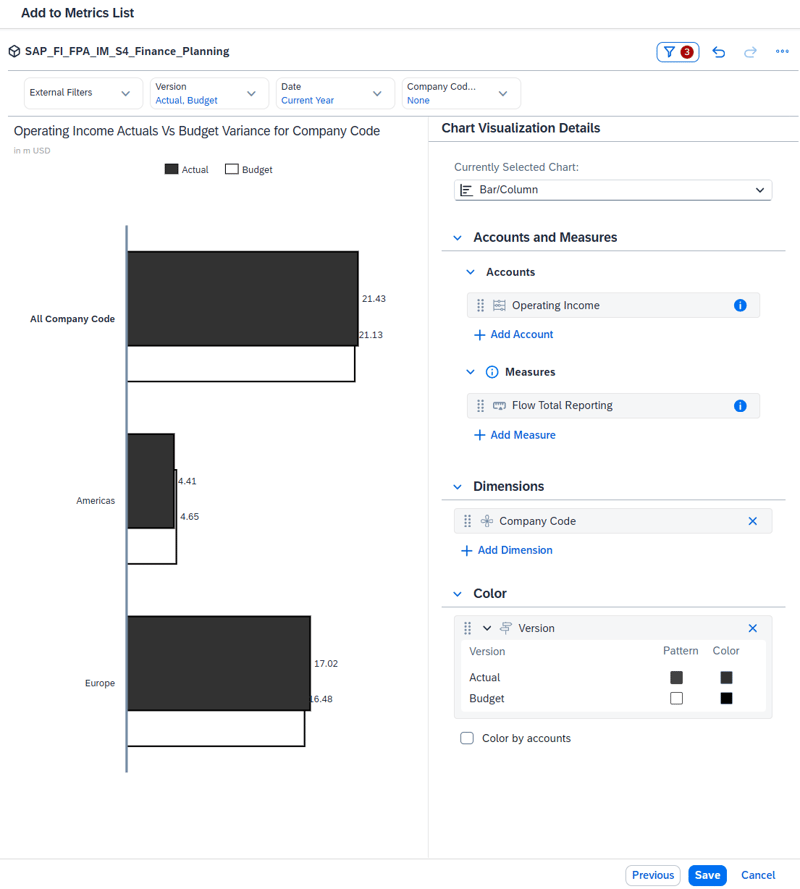
Additionally, you can customize the detailed chart by adding extra dimensions, changing colors, or selecting a different chart type to present the data more clearly.
004-chart-visualization-details

The metrics defined in this way are preserved even if the original story is modified or deleted. Since the metrics are based on the underlying data source rather than the story, the key figures always display the current status. Exit variables in Datasphere, which we introduced in the article “Customer Exit Logic in Datasphere: Dynamic Defaults Explained” are also taken into account. However, you must be careful when using calculated key figures in your metrics. Since the defined metric represents a copy as of the time of creation, subsequent adjustments to the calculated key figures are not reflected.

How to Monitor KPIs with My Metrics

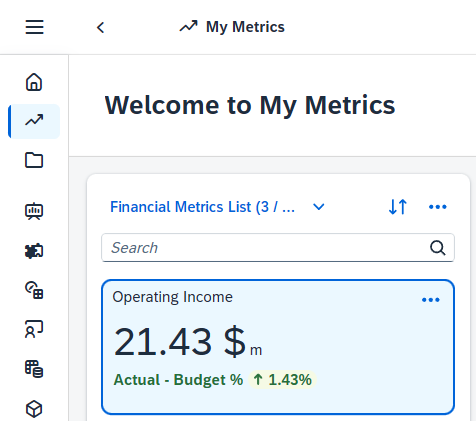
The metrics you have created are stored in a metrics list. You can access these in the navigation menu via the My Metrics entry.
005-my-metrics-navigation-menu

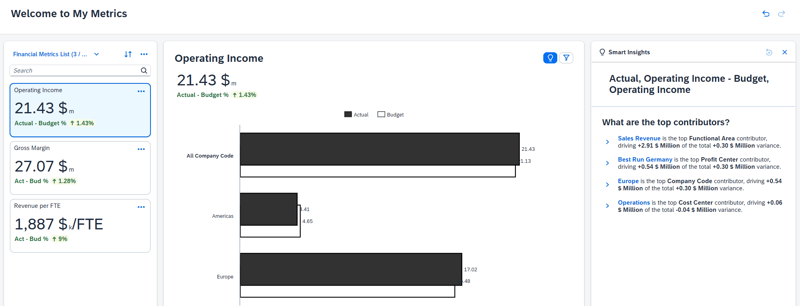
Here you will find a structured overview of your most important KPIs. On the left side, you will find a list of all assigned metrics. These can originate from completely different stories and data models. You have the option to switch between different metric lists and sort the entries according to your needs. Here you can also adjust the display of variances by switching between percentage and absolute values.

000-my-metrics

In the center, each metric is displayed in detail with the visualization that was configured at the time it was added. For deeper analysis, the view is enriched by "Smart Insights" on the right side, which are dynamically generated for the respective metric. You can also generate additional “Smart Insights” by right-clicking on a data point. Should a more comprehensive analysis be necessary, the application allows you to jump directly from the individual metric back to the original story at any time to seamlessly continue the analysis there.

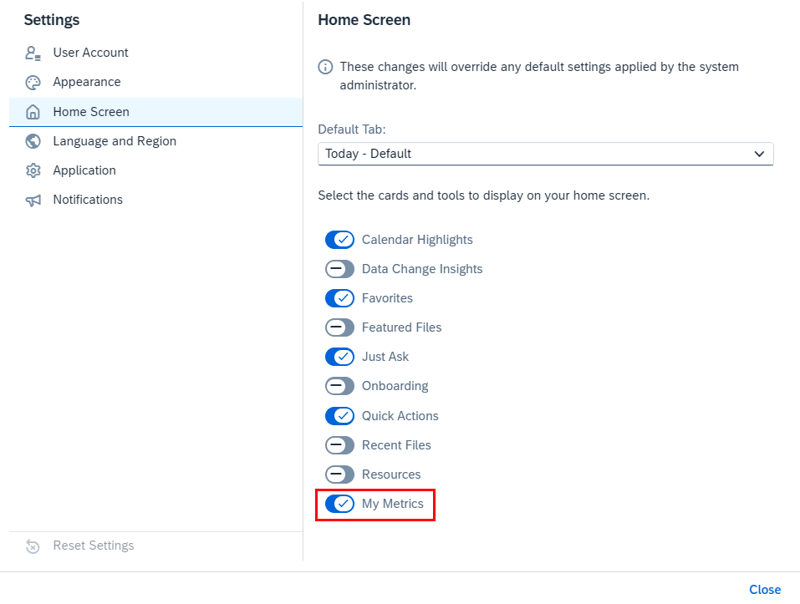
Furthermore, you can also display “My Metrics” on the home page. Activate the option My Metrics in the Home Screen area within your user settings. This allows you to see the most important KPIs immediately upon logging into SAP Analytics Cloud.
006-home-screen-my-metrics

Share Metrics and KPI Lists with Other Users

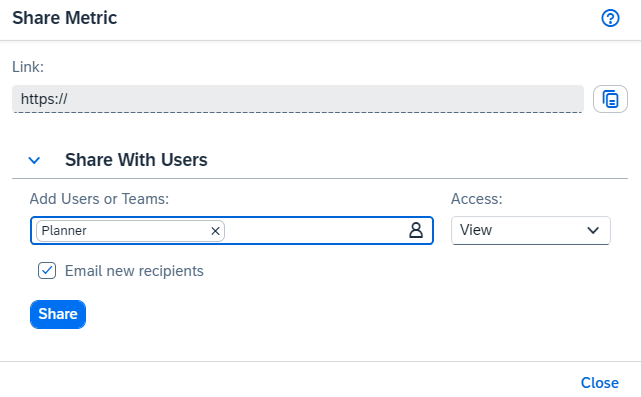
You can share individual metrics as well as complete metric lists with other users. In doing so, you can define whether the recipient is only allowed to view the shared metrics or also edit them. To ensure your colleagues receive the new information promptly, you can optionally send an email notification when sharing. Additionally, recipients automatically receive an in-app notification that the metrics have been shared.
007-share-metric

Limitations and Supported Chart Types for My Metrics

Unfortunately, there are also certain scenarios where this functionality is not available. For example, the following chart types cannot be used as a source for metrics: Blended Chart, Histogram, Time Series Chart, and Bubble Chart. Difficulties may also arise if a data point uses complex filters.

Furthermore, charts based on custom widgets are not supported. Since these are technically custom widgets and not charts, they cannot be used to create metrics. The same applies to R visualizations. However, charts that have been extended with custom add-ons can still be used.
An essential prerequisite for using this function is the use of an Optimized Story, as classic stories are not supported. In addition, we would like to see a proactive notification function for future versions when a threshold value is exceeded.

Our Conclusion: My Metrics as your Personalized KPI Cockpit

The introduction of “My Metrics” in the SAP Analytics Cloud marks an important step towards self-service analytics. This feature allows users to create an individual cockpit that is tailored precisely to their own daily tasks, without involving the IT department.

The greatest strengths lie in centralization and efficiency. Instead of tediously clicking through various stories, users have immediate visibility of their most important KPIs, including variances and Smart Insights. The simple integration option on the home page and the flexible sharing options round off the package and enable data-driven collaboration within your company.

Have you implemented My Metrics but reached functional or conceptual limits? Get in touch with us. We can help you identify best practices and define a setup that fits your company’s reporting and KPI monitoring needs.


 

Learn all about SAC


FAQ - My Metrics in SAP Analytics Cloud

Here you can find soe of the most frequently asked questions about the My Metrics function in SAP Analytics Cloud (SAC).

What exactly is "My Metrics"? "My Metrics" is a feature in the SAP Analytics Cloud that functions like a personalized cockpit. It allows you to compile and monitor key performance indicators (KPIs) from various stories and data models in a central list, without having to constantly switch between different dashboards.
Who is this function intended for? The function is aimed at business end users, such as controllers. No technical modeling skills are required.
Do I need IT or modeling skills to create metrics? No. The function is specifically designed for business users. You can easily create metrics via the context menu of a chart without needing any technical knowledge.
What happens to a metric if the original story is deleted? The metric remains intact. Since metrics are based on the underlying data source and not on the story itself, they continue to exist independently.
Is the data in "My Metrics" updated automatically? Yes, the metrics always display the current status of the data source. This also includes changing exit variables (e.g. from SAP Datasphere). Caution: For calculated measures, the metric represents a copy at the time of creation. Subsequent formula adjustments are not automatically applied.
Can I share my metrics with colleagues? Yes, you can share individual metrics or entire lists. You can define whether the recipient receives read-only or editing rights. Optionally, you can send an email notification when sharing. An in-app notification is sent automatically.
What limitations apply to chart types?

Not all charts are suitable as a source. The following types are currently not supported:

  • Blended charts
  • Histograms
  • Time series charts
  • Bubble charts
  • R visualizations
  • Custom widgets
Are there prerequisites regarding the story type? Yes, the function is only available in the "Optimized Story Experience". Classic stories are not supported.
Do automatic warnings occur when a threshold is exceeded? Currently, there is no proactive notification function (push notification) when a certain value is exceeded or falls below a limit. However, you can see this visually in the overview when checking the metrics.
What are "Smart Insights"? "Smart Insights" are AI-powered analyses that are displayed to the right of the metric. They provide automatically generated insights and background information regarding the displayed figures to help better understand deviations.

,

avatar

Rafael

Rafael Sachs has been working as an SAP BW and BO consultant in various industries in Germany and abroad since 2013. He covers the range from requirements management to implementation. His core competencies are tailor-made solutions in the front-end area and the professional design of the company's own software NextTables. In his spare time he is a restless hiker, dog tamer and hobby cook.

Got a question about this blog?
Ask Rafael

My Metrics in SAP Analytics Cloud: Personalized KPI Monitoring Made Easy
6:49

Blog - NextLytics AG 

Welcome to our blog. In this section we regularly report on news and background information on topics such as SAP Business Intelligence (BI), SAP Dashboarding with Lumira Designer or SAP Analytics Cloud, Machine Learning with SAP BW, Data Science and Planning with SAP Business Planning and Consolidation (BPC), SAP Integrated Planning (IP) and SAC Planning and much more.

Subscribe to our newsletter

Related Posts

Recent Posts