Skip to content
NextLytics
Megamenü_2023_Über-uns

Shaping Business Intelligence

Whether clever add-on products for SAP BI, development of meaningful dashboards or implementation of AI-based applications - we shape the future of Business Intelligence together with you. 

Megamenü_2023_Über-uns_1

About us

As a partner with deep process know-how, knowledge of the latest SAP technologies as well as high social competence and many years of project experience, we shape the future of Business Intelligence in your company too.

Megamenü_2023_Methodik

Our Methodology

The mixture of classic waterfall model and agile methodology guarantees our projects a high level of efficiency and satisfaction on both sides. Learn more about our project approach.

Products
Megamenü_2023_NextTables

NextTables

Edit data in SAP BW out of the box: NextTables makes editing tables easier, faster and more intuitive, whether you use SAP BW on HANA, SAP S/4HANA or SAP BW 4/HANA.

Megamenü_2023_Connector

NextLytics Connectors

The increasing automation of processes requires the connectivity of IT systems. NextLytics Connectors allow you to connect your SAP ecosystem with various open-source technologies.

IT-Services
Megamenü_2023_Data-Science

Data Science & Engineering

Ready for the future? As a strong partner, we will support you in the design, implementation and optimization of your AI application.

Megamenü_2023_Planning

SAP Planning

We design new planning applications using SAP BPC Embedded, IP or SAC Planning which create added value for your company.

Megamenü_2023_Dashboarding

Business Intelligence

We help you with our expertise to create meaningful dashboards based on Tableau, Power BI, SAP Analytics Cloud or SAP Lumira. 

Megamenü_2023_Data-Warehouse-1

SAP Data Warehouse

Are you planning a migration to SAP HANA? We show you the challenges and which advantages a migration provides.

Business Analytics
Megamenü_2023_Procurement

Procurement Analytics

Transparent and valid figures are important, especially in companies with a decentralized structure. SAP Procurement Analytics allows you to evaluate SAP ERP data in SAP BI.

Megamenü_2023_Reporting

SAP HR Reporting & Analytics

With our standard model for reporting from SAP HCM with SAP BW, you accelerate business activities and make data from various systems available centrally and validly.

Megamenü_2023_Dataquality

Data Quality Management

In times of Big Data and IoT, maintaining high data quality is of the utmost importance. With our Data Quality Management (DQM) solution, you always keep the overview.

Career
Megamenü_2023_Karriere-2b

Working at NextLytics

If you would like to work with pleasure and don't want to miss out on your professional and personal development, we are the right choice for you!

Megamenü_2023_Karriere-1

Senior

Time for a change? Take your next professional step and work with us to shape innovation and growth in an exciting business environment!

Megamenü_2023_Karriere-5

Junior

Enough of grey theory - time to get to know the colourful reality! Start your working life with us and enjoy your work with interesting projects.

Megamenü_2023_Karriere-4-1

Students

You don't just want to study theory, but also want to experience it in practice? Check out theory and practice with us and experience where the differences are made.

Megamenü_2023_Karriere-3

Jobs

You can find all open vacancies here. Look around and submit your application - we look forward to it! If there is no matching position, please send us your unsolicited application.

Blog
NextLytics Newsletter
Subscribe for our monthly newsletter:
Sign up for newsletter
 

SAP Analytics Cloud Excel Add-in: Boost Performance with Mass Mode

The world of analytics has evolved enormously in recent years. AI-powered analytics are revolutionising the way we work with data. SAP Business Data Cloud offers seamless integration with Databricks and opens up new possibilities for machine learning. Yet, amidst all these innovations, one constant remains stubbornly persistent - Microsoft Excel.

Whether it's financial planning, analysis or calculations, Excel is and remains the preferred tool for millions of business users worldwide. The familiar interface and the flexibility of the spreadsheet are not easy to replace.

SAP has recognised this need. With BEx Analyzer, Analysis for Office and now SAP Analytics Cloud, Add-in for Microsoft Excel, SAP has released solutions that enable users to access a consolidated database directly within their familiar Excel interface. This ensures a “single version of the truth”.

Yet, the add-in reached its limits with large amounts of data, around 1.000.000 cells. As soon as reports reached this size, the add-in restarted. It was simply not designed for massive data exports.

Activate high-volume mode

SAP has recently released high-volume mode, which enables analyses with up to 10 million cells. In this article, I will show you how to use high-volume mode and also address the current limitations.
You can easily switch to high-volume mode using the table's context menu.
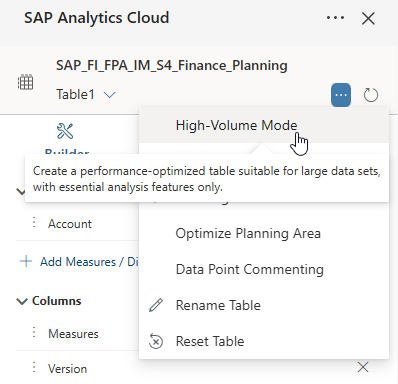
001-high-volume-mode

When high-volume mode is active, a note is displayed in brackets below the table name. You can switch between standard and high-volume mode at any time.
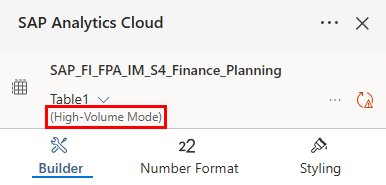
002-high-volume-mode-active

High-volume mode generates a performance-optimised table specifically for large amounts of data and is limited to the essential analysis functions. The following table shows a comparison of standard mode and high-volume mode.


Standard Mode

High-Volume Mode

Configured data record limitation

1 Mio

10 Mio (backend maximum)

Maximum table size

ca. 1 Mio cells

ca. 10 Mio cells

Maximum workbook size

ca. 1 Mio cells

ca. 12 Mio cells

Thus, the SAC Add-in can keep up with Analysis for Office. While Analysis for Office has a standard limit of 500.000 cells, you can set the parameter ResultSetSizeLimit to -1 in order to use the values ​​defined in the BW system under BICS_DA_RESULT_SET_LIMIT_MAX.

Every time you change the layout of the table, the display is refreshed and the values are recalculated. With large amounts of data, this process can take some time. If you add multiple dimensions to the layout one after another, it is advisable to disable automatic refresh. This will help you avoid unnecessary loading times.
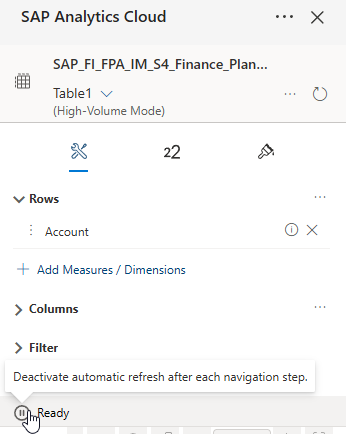
003-pause-refresh

Alternatively, you can pause refresh before inserting the table, switch to high-volume mode and define the desired breakdown. When you subsequently refresh the table, all required data is loaded at once.
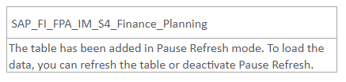
004-added-pause-refresh


Dashboarding with SAP Analytics Cloud -
Download the Whitepaper here!
SAP Analytics Cloud Whitepaper


Compare performance

High-volume mode is designed for higher performance. But, the difference to normal mode only becomes significant with several hundred thousand cells. To measure and compare performance, you can activate performance profiling.

To do this, go to Workbook in the design panel and select Preferences. Then select Enable option under Performance Profiling. An additional tab will now be displayed containing the performance information.
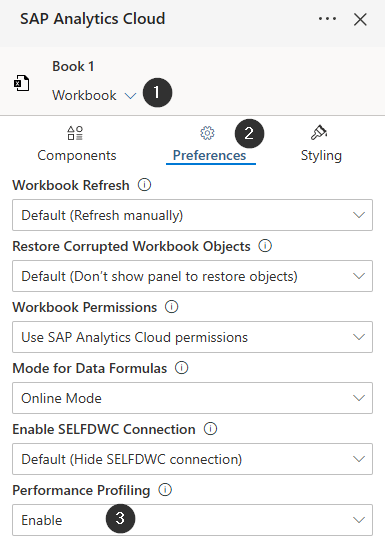
005-preferences

The Challenge: Performance Limits with Large Data Volumes

There are also some limitations that must be considered. In high-volume mode, the functionality is reduced to the essentials. For example, planning and data entry are not possible. Planning processes with millions of cells rarely occur in practice though. Normally, planning takes place at an aggregated level.

There are also compromises in terms of appearance. Formatting options such as number formats or conditional formatting are not available. Additionally, you have to do without data point comments and calculated measures. The Add rows/columns function is also not available.

Furthermore, it is currently not possible to display properties or attributes of dimensions in high-volume mode. However, this limitation may be resolved in the future, as it is a very important feature in everyday work with data. As a workaround, you can first display the attributes and then switch to high-volume mode.

Boost Performance wit SAC Excel Add-in: OurConclusion

The high-volume mode in the SAP Analytics Cloud Add-in for Microsoft Excel closes an important gap. Where previously the limit was one million cells, analyses with up to 10 million cells are now possible. This is a real benefit for users who regularly work with large datasets.

We recommend using high-volume mode specifically for large data exports and comprehensive reports. For interactive analyses, planning or formatted reports, standard mode remains the better choice. The ability to switch between the two modes gives you the flexibility you need.

Are you contemplating how to use the SAC features in your organisation? Reach out for a free, individual consultation with one of our experts.


 

Learn all about SAC


FAQ - SAC Excel-Add-in

Here you can find some of the most frequently asked questions on the SAC Excel Add-in.

Can I plan and write back my data in high-volume mode? No. High-volume mode is designed purely for displaying and exporting large amounts of data. Planning functions and data entry are disabled.
My table looks different in high-volume mode. Why is my formatting missing? To achieve maximum performance for up to 10 million cells, all resource-intensive rendering processes are disabled. This includes styling, number formats and conditional formatting.
How do I avoid long loading times with large tables? Disable automatic refresh before adding additional dimensions to the layout.
Can I add a new table directly in high-volume mode without loading data first? Yes, this is even recommended to save loading times. To do this, pause the refresh in the design panel, add the table, switch to high-volume mode in the context menu and define your layout. Then reactivate the refresh.
How do I know that bulk mode is active? Below the table name, a note is displayed in parentheses indicating that high-volume mode is active.
Accordion Title iHow can I measure the performance of high-volume mode? Enable performance profiling under Workbook → Preferences → Performance Profiling → Enable. An additional tab with performance information will appear.

avatar

Rafael

Rafael Sachs has been working as an SAP BW and BO consultant in various industries in Germany and abroad since 2013. He covers the range from requirements management to implementation. His core competencies are tailor-made solutions in the front-end area and the professional design of the company's own software NextTables. In his spare time he is a restless hiker, dog tamer and hobby cook.

Got a question about this blog?
Ask Rafael

SAP Analytics Cloud Excel Add-in: Boost Performance with Mass Mode
5:14

Blog - NextLytics AG 

Welcome to our blog. In this section we regularly report on news and background information on topics such as SAP Business Intelligence (BI), SAP Dashboarding with Lumira Designer or SAP Analytics Cloud, Machine Learning with SAP BW, Data Science and Planning with SAP Business Planning and Consolidation (BPC), SAP Integrated Planning (IP) and SAC Planning and much more.

Subscribe to our newsletter

Related Posts

Recent Posts